> ## Documentation Index
> Fetch the complete documentation index at: https://cometchat-22654f5b-docs-audit-mechanical-fixes.mintlify.site/llms.txt
> Use this file to discover all available pages before exploring further.

# Astro Integration

> Add CometChat to an Astro app in 5 steps: create project, install, init, login, render.

<Accordion title="AI Integration Quick Reference">
  | Field            | Value                                                                                                                                                       |
  | ---------------- | ----------------------------------------------------------------------------------------------------------------------------------------------------------- |
  | Package          | `@cometchat/chat-uikit-react` v7.0.x                                                                                                                        |
  | Peer deps        | `react` >=18, `react-dom` >=18, `@cometchat/chat-sdk-javascript` ^4.1.9, `dompurify` ^3.3.1                                                                 |
  | Init             | `CometChatUIKit.init(UIKitSettings)` — must resolve before `login()`                                                                                        |
  | Login            | `CometChatUIKit.login("UID")` — must resolve before rendering components                                                                                    |
  | Order            | `init()` → `login()` → render. Breaking this order = blank screen                                                                                           |
  | Auth Key         | Dev/testing only. Use Auth Token in production                                                                                                              |
  | CSS              | `import "@cometchat/chat-uikit-react/styles";`                                                                                                              |
  | SSR              | Use `client:only="react"` directive — CometChat components cannot be server-rendered                                                                        |
  | Calling          | Optional. Install `@cometchat/calls-sdk-javascript` to enable                                                                                               |
  | Other frameworks | [React.js](/ui-kit/react/v7/integration-react) · [Next.js](/ui-kit/react/v7/integration-nextjs) · [React Router](/ui-kit/react/v7/integration-react-router) |
</Accordion>

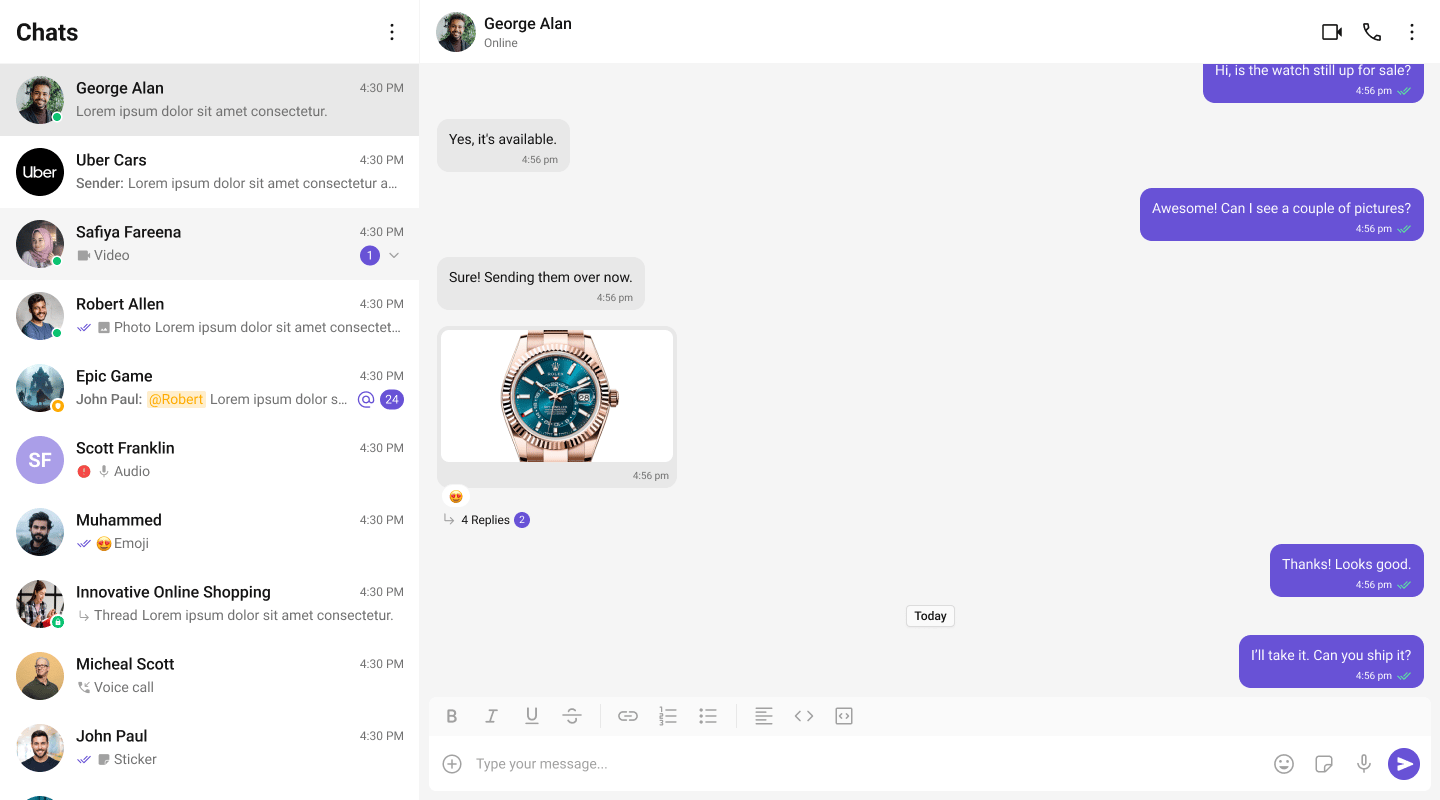
This guide walks you through adding CometChat to an Astro app using React islands. By the end you'll have a working chat UI.

<Frame>
  <img src="https://mintcdn.com/cometchat-22654f5b-docs-audit-mechanical-fixes/SS5z-0d3JRPfFXXj/images/two_panel_layout_without_tabs_react_v7.png?fit=max&auto=format&n=SS5z-0d3JRPfFXXj&q=85&s=23128a7270594a16d4aca3bfb71e569b" width="1440" height="800" data-path="images/two_panel_layout_without_tabs_react_v7.png" />
</Frame>

***

## Prerequisites

You need three things from the [CometChat Dashboard](https://app.cometchat.com/):

| Credential | Where to find it                                           |
| ---------- | ---------------------------------------------------------- |
| App ID     | Dashboard → Your App → Credentials                         |
| Auth Key   | Dashboard → Your App → Credentials                         |
| Region     | Dashboard → Your App → Credentials (e.g. `us`, `eu`, `in`) |

You also need **Node.js 18+** and npm/yarn installed.

<Warning>
  Auth Key is for development only. In production, generate Auth Tokens server-side via the REST API. Never ship Auth Keys in client code.
</Warning>

***

## Step 1 — Create an Astro Project

```bash theme={null}
npm create astro@latest my-app
cd my-app
npx astro add react
```

When prompted by `astro add react`, confirm the installation of `react`, `react-dom`, and `@astrojs/react`.

***

## Step 2 — Install the UI Kit

<Tabs>
  <Tab title="npm">
    ```bash theme={null}
    npm install @cometchat/chat-uikit-react @cometchat/chat-sdk-javascript dompurify
    ```
  </Tab>

  <Tab title="yarn">
    ```bash theme={null}
    yarn add @cometchat/chat-uikit-react @cometchat/chat-sdk-javascript dompurify
    ```
  </Tab>
</Tabs>

If you want voice/video calling, also install:

```bash theme={null}
npm install @cometchat/calls-sdk-javascript
```

***

## Step 3 — Create the React Island Component

CometChat components live inside a React island (a `.tsx` file in `src/components/`). Wrap your chat UI in `CometChatProvider` which handles init and login automatically.

For development, use one of the pre-created test UIDs:

`cometchat-uid-1` · `cometchat-uid-2` · `cometchat-uid-3` · `cometchat-uid-4` · `cometchat-uid-5`

```tsx title="src/components/CometChatApp.tsx" theme={null}
import { useState } from "react";
import { CometChat } from "@cometchat/chat-sdk-javascript";
import {
  CometChatProvider,
  CometChatConversations,
  CometChatMessageHeader,
  CometChatMessageList,
  CometChatMessageComposer,
} from "@cometchat/chat-uikit-react";
import "@cometchat/chat-uikit-react/styles";

export default function CometChatApp() {
  const [chatUser, setChatUser] = useState<CometChat.User | undefined>();
  const [chatGroup, setChatGroup] = useState<CometChat.Group | undefined>();

  const handleConversationClick = (conversation: CometChat.Conversation) => {
    const entity = conversation.getConversationWith();
    if (conversation.getConversationType() === "user") {
      setChatUser(entity as CometChat.User);
      setChatGroup(undefined);
    } else {
      setChatGroup(entity as CometChat.Group);
      setChatUser(undefined);
    }
  };

  return (
    <CometChatProvider
      appId="YOUR_APP_ID"
      region="YOUR_REGION"
      authKey="YOUR_AUTH_KEY"
      uid="cometchat-uid-1"
    >
      <div style={{ display: "flex", height: "100vh" }}>
        <div style={{ width: 360, borderRight: "1px solid #eee" }}>
          <CometChatConversations onItemClick={handleConversationClick} />
        </div>
        <div style={{ flex: 1, display: "flex", flexDirection: "column" }}>
          {(chatUser || chatGroup) && (
            <>
              <CometChatMessageHeader user={chatUser} group={chatGroup} />
              <CometChatMessageList user={chatUser} group={chatGroup} />
              <CometChatMessageComposer user={chatUser} group={chatGroup} />
            </>
          )}
        </div>
      </div>
    </CometChatProvider>
  );
}
```

`CometChatProvider` handles init, login, and all context setup automatically. For advanced use cases (custom login flows, individual providers), see the [CometChatProvider](/ui-kit/react/v7/cometchat-provider) guide.

<Note>
  For production, use the `authToken` prop instead of `authKey` + `uid`. Generate auth tokens server-side via the CometChat REST API. Never ship auth keys in client code.
</Note>

***

## Step 4 — Render the Island in an Astro Page

Create an Astro page that renders the React island with `client:only="react"`. This ensures the component only runs in the browser — no server-side rendering.

```astro title="src/pages/index.astro" theme={null}
---
import CometChatApp from '../components/CometChatApp.tsx';
---

<html lang="en">
  <head>
    <meta charset="utf-8" />
    <meta name="viewport" content="width=device-width" />
    <title>Chat App</title>
  </head>
  <body>
    <CometChatApp client:only="react" />
  </body>
</html>
```

<Warning>
  You must use `client:only="react"` — not `client:load` or `client:visible`. CometChat components use browser APIs (DOM, WebSocket) and cannot be server-rendered. Using `client:only` skips SSR entirely.
</Warning>

***

## Step 5 — Run

```bash theme={null}
npm run dev
```

Open `http://localhost:4321`. You should see the conversation list on the left. Click a conversation to open the message panel.

<Frame>
  <img src="https://mintcdn.com/cometchat-22654f5b-docs-audit-mechanical-fixes/SS5z-0d3JRPfFXXj/images/two_panel_layout_without_tabs_react_v7.png?fit=max&auto=format&n=SS5z-0d3JRPfFXXj&q=85&s=23128a7270594a16d4aca3bfb71e569b" width="1440" height="800" data-path="images/two_panel_layout_without_tabs_react_v7.png" />
</Frame>

***

## Choose a Chat Experience

### Conversation List + Message View

Two-panel layout — conversation list on the left, messages on the right.

<Frame>
  <img src="https://mintcdn.com/cometchat-22654f5b-docs-audit-mechanical-fixes/SS5z-0d3JRPfFXXj/images/two_panel_layout_without_tabs_react_v7.png?fit=max&auto=format&n=SS5z-0d3JRPfFXXj&q=85&s=23128a7270594a16d4aca3bfb71e569b" width="1440" height="800" data-path="images/two_panel_layout_without_tabs_react_v7.png" />
</Frame>

***

### One-to-One / Group Chat

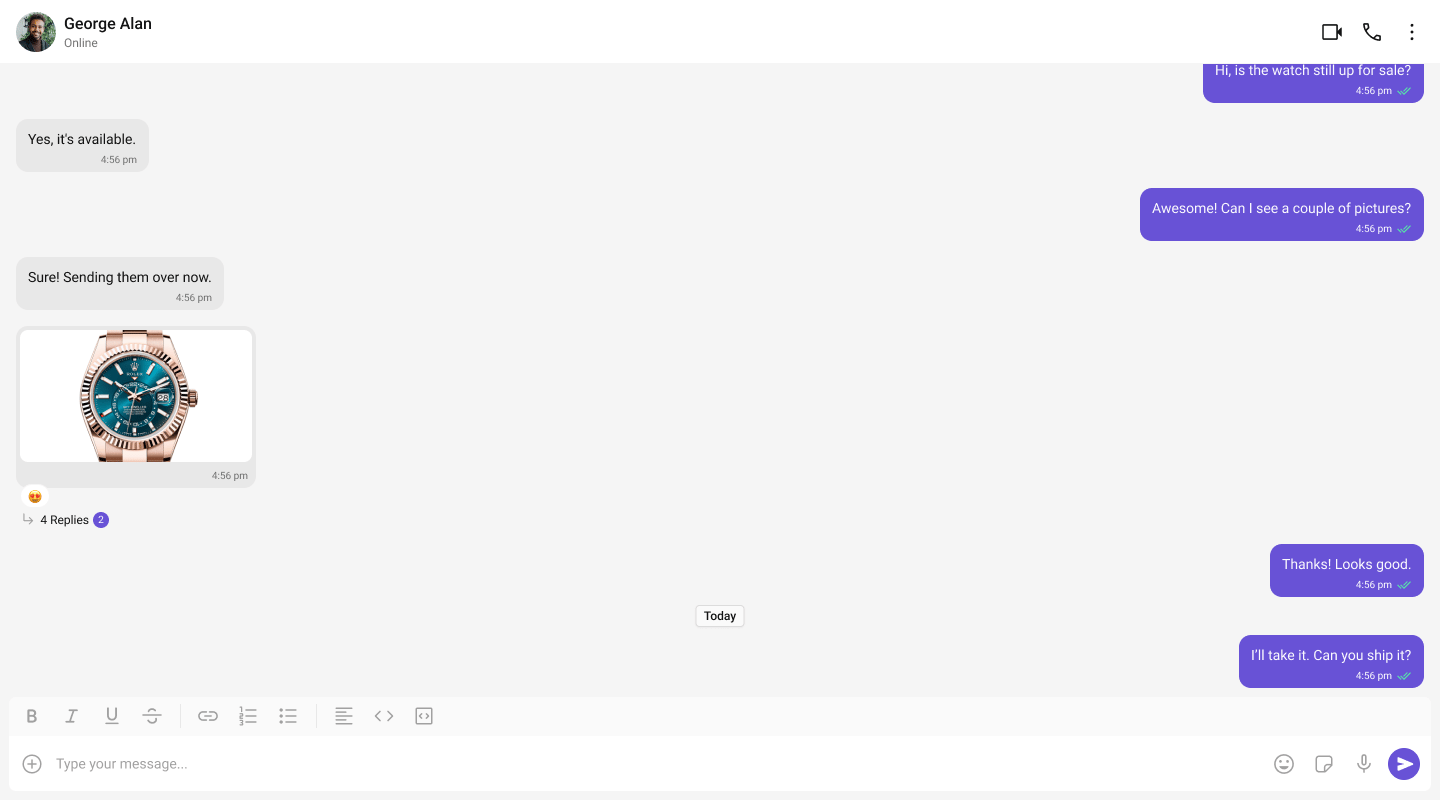
Single chat window — no sidebar. Good for support chat or embedded widgets.
<Frame>
  <img src="https://mintcdn.com/cometchat-22654f5b-docs-audit-mechanical-fixes/SS5z-0d3JRPfFXXj/images/one_panel_layout_react_v7.png?fit=max&auto=format&n=SS5z-0d3JRPfFXXj&q=85&s=77c59bff24eb7809f882513701a0ca8e" width="1440" height="800" data-path="images/one_panel_layout_react_v7.png" />
</Frame>

***

### Tab-Based Chat

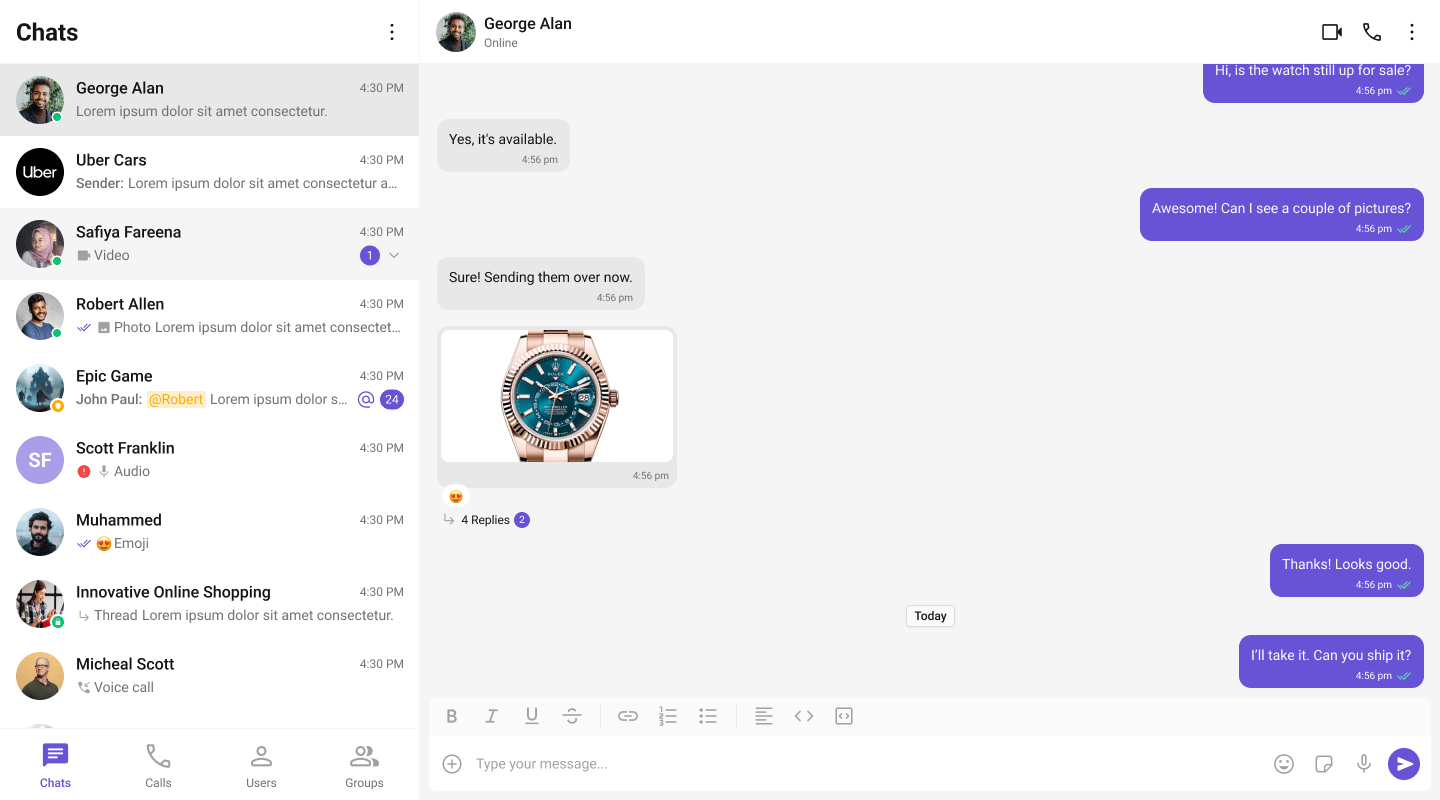
Tabbed navigation — Chat, Call Logs, Users, Settings in separate tabs.
<Frame>
  <img src="https://mintcdn.com/cometchat-22654f5b-docs-audit-mechanical-fixes/SS5z-0d3JRPfFXXj/images/two_panel_layout_with_tabs_react_v7.png?fit=max&auto=format&n=SS5z-0d3JRPfFXXj&q=85&s=7a4fb33ab1c22d9db57a93168101cf6d" width="1440" height="800" data-path="images/two_panel_layout_with_tabs_react_v7.png" />
</Frame>

***

## Next Steps

<CardGroup cols={2}>
  <Card title="Components Overview" icon="grid-2" href="/ui-kit/react/v7/components-overview">
    Browse all prebuilt UI components
  </Card>

  <Card title="Theming" icon="paintbrush" href="/ui-kit/react/v7/theming">
    Customize colors, fonts, and styles
  </Card>

  <Card title="Plugins" icon="puzzle-piece" href="/ui-kit/react/v7/plugins/overview">
    Customize message rendering
  </Card>

  <Card title="Troubleshooting" icon="wrench" href="/ui-kit/react/v7/troubleshooting">
    Common issues and fixes
  </Card>
</CardGroup>
